


Move to iOS
3.714.79K Reviews
App Specs
- Version
- 4.0.3
- Updated On
- License
- Free
- Downloads
- 100,000,000+
- Developer
- Apple
- Categories
- Tools
- Platform
- Android, iOS
Screenshots
 Analysis by AppCompare
When I help someone move from an Android phone to an iPhone, the first concern is usually not the new interface; it’s whether their familiar information will come along. Move to iOS is Apple’s free transfer tool, and its appeal is clearest during that first setup: it gives the changeover a defined starting point instead of leaving you to rebuild everything by hand. Apple makes it, and the app has a 3.7 average from around 215,000 ratings, with over 100 million installs. Those numbers suggest it is a well-used utility, but its value is tied to a particular moment rather than daily use.
Useful in the first week, not a daily companion
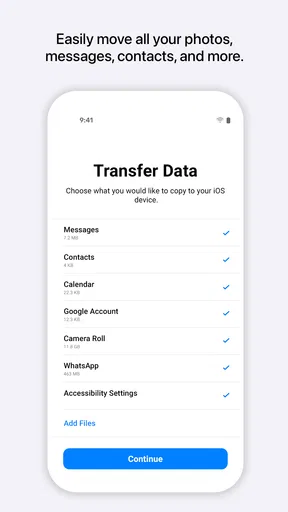
The tool is for a specific job: bringing selected information from an Android device to an iPhone or iPad. It can transfer contacts, message history, photos, videos, web bookmarks, mail accounts, and calendars. It can also point out free Android apps that are available in Apple’s App Store. That makes the first week easier because you can start with much of your personal information in place, then decide which apps you actually want on the new device.
A practical approach is to treat the transfer as a handoff, not a perfect clone. Before starting, check that the Android phone has the photos and conversations you care about, and think through what you will want to access immediately on the iPhone. If your old phone contains years of pictures, the process may take longer than a quick setup. I would begin when both phones can stay nearby and undisturbed, rather than trying to do it in a rush before leaving home.
For example, imagine replacing a phone on a quiet evening: you bring over contacts and calendars first, then let the larger photo and video collection transfer while you can leave both devices alone. Once the move is complete, you can check the important items before wiping or trading in the Android. That final check is worth the few minutes; a transfer is helpful, but I would not treat it as a reason to erase the old phone immediately.
Where it fits among other ways to switch
Compared with copying things manually, the benefit is that Move to iOS gathers several common kinds of information into one guided setup. That is especially useful if you are not comfortable exporting contacts, moving files between services, or figuring out each item separately. For a person who only wants to bring across a small set of contacts, manual entry or syncing through services they already use may be simpler. For a broad move from Android, the one-time guided route is more appealing.
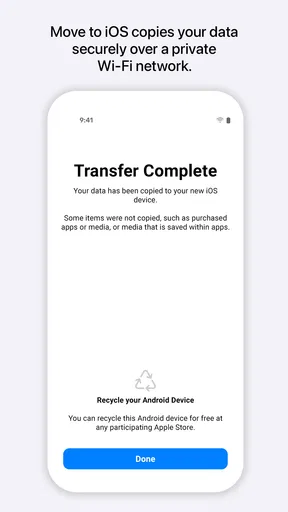
It is not a universal bridge between every part of two phones. Apps and music purchased through Google Play do not transfer as purchases, and an Android app does not become its iOS counterpart automatically. The suggestion to download free apps that are available in the App Store is a starting point, not a promise that every app, account, or piece of app data will be recreated. I would make a short list of essential apps beforehand and check how each handles sign-in or stored information on iPhone.
That distinction matters most for people who rely on a particular app for work, travel, or personal records. If it exists on both platforms, you may still need to install it and sign in separately. If it is Android-only, this transfer cannot make it available on iOS. In that situation, check your alternatives before committing to the switch; the app is best at moving supported personal information, not resolving every platform difference.
Worth Reading Before You Choose

Flipboard Shows What News Apps Must Do Beyond the Feed

Switching to Android Auto Means Rethinking Your Driving Routine

Google Calendar Makes a Crowded Week Easier to Manage

Ludo King Makes the Most of the Minutes Between Plans

Baby Panda World Brings Quick Play to Modern Phones, but Its Game Library Feels Busy

ESPN’s Live Game View Makes Following Close Games Easier
Getting Started with Ease
Right off the bat, the setup process is super straightforward. All you need is your Android device and your new iPhone. Download the Move to iOS app from the Google Play Store, and you're halfway there! The app connects both devices over a direct Wi-Fi network. No need for cables or a computer, which is awesome because who has time for that?
Smooth Transition
When it comes to transferring your data, the app does a fantastic job. It moves your contacts, message history, photos, videos, web bookmarks, mail accounts, and calendars. The whole shebang! It’s like packing up your old room and setting up in a new place without missing a beat. I was pleasantly surprised at how seamlessly it all happened. Plus, the app even suggests downloading free apps you had on your Android that are available in the App Store. Nice touch, right?
One small but useful planning tip is to decide what counts as “ready” before you begin. For some people, that means having contacts, calendars, and recent messages available; for others, it means waiting until a large photo collection has arrived too. Knowing your priority helps you judge whether the transfer is complete enough for the day, without assuming that every detail of the old phone will appear in the same form on the new one.
Minor Hiccups
Okay, so it’s not all rainbows and unicorns. You might encounter a few minor hiccups. For instance, the transfer might take a bit longer if you're moving large amounts of data. But hey, good things come to those who wait! Also, apps and music purchased on Google Play don't transfer, but that's more of a platform limitation than the app itself.
The main trade-off is that this is a one-time migration tool, not something that earns a lasting place in your routine. After the move, its job is essentially done; future everyday use belongs to the iPhone’s own apps and the services you choose. That is not a flaw so much as a limit on recurring value. I would keep it in mind for a switch or a later migration, but I would not expect a reason to open it every month.
There can also be a little setup fatigue. A new phone already asks you to make choices about accounts, apps, and preferences, and a large transfer adds waiting to that list. If you are short on time, have an urgent need to use the new phone, or only want to move a few items, a selective manual approach may feel less burdensome. If you want a fuller starting point and can give the process room, the guided transfer is more convenient.
Why It’s Worth It
Overall, Move to iOS is a lifesaver for anyone jumping ship to an iPhone. Picture this: you’re sitting there with your new iPhone, everything set up just how you like it, and it didn’t even take all day. Pretty sweet, huh? The app simplifies what could be a painful process and turns it into a smooth ride.
It is most useful for people who are moving a main phone and want common personal information ready without piecing together several separate methods. It is less compelling if you are only testing an iPhone, keeping Android as your primary device, or expecting a complete copy of paid apps and every app’s internal content. The age rating is Everyone, and the current version is 4.0.3, but the decision to use it is really about timing: it belongs at the start of a move, not in a long-term maintenance routine.
In conclusion, if you’re on the fence about switching to iOS, this app makes it a no-brainer. It’s efficient, user-friendly, and takes away the stress of losing your precious data. So go ahead, make the switch and enjoy your new iOS experience without any of the usual hassle.
Pros
- Seamlessly transfers data from Android to iOS.
- Supports most essential data types.
- User-friendly interface for easy navigation.
- Secure transfer using a private Wi-Fi network.
- Free and reliable without hidden fees.
Cons
- Limited to devices running Android 4.0 or later.
- Cannot transfer apps or music files.
- Requires both devices to be connected to power.
- May experience slow transfers with large data.
- Occasional connectivity issues reported.
FAQs for Move to iOS
What is Move to iOS and how does it work?
Move to iOS is an application designed to help users transfer data from an Android device to an iOS device seamlessly. It works by establishing a secure Wi-Fi connection between the two devices, allowing you to transfer contacts, message history, photos, videos, web bookmarks, mail accounts, and calendars. It ensures a smooth transition when switching from Android to iOS.
Is Move to iOS compatible with all types of data?
Move to iOS supports the transfer of specific data types, including contacts, message history, photos, videos, web bookmarks, mail accounts, and calendars. However, it does not transfer apps, music, or passwords. Users need to download apps again on the App Store and manually re-enter passwords on the new device.
Are there any prerequisites for using Move to iOS?
Before using Move to iOS, ensure that both devices are connected to a power source and have a stable Wi-Fi connection. The iOS device must be new or reset to factory settings, as the app works during the initial setup process. Additionally, both devices should have enough storage to accommodate the transferred data.
Can I use Move to iOS after setting up my iPhone?
Move to iOS is designed to be used during the initial setup of a new iPhone. If you have already set up your iPhone and wish to transfer data, you will need to reset your device to factory settings to use the app. Alternatively, consider using other transfer methods, such as iCloud or iTunes, for specific data types.
Are there any common issues or troubleshooting tips for Move to iOS?
Common issues with Move to iOS include connection failures and incomplete transfers. To troubleshoot, ensure both devices are in close proximity, disable any background apps that might interfere, and check for sufficient storage. Restarting both devices and trying again often resolves connection issues. If problems persist, consult Apple Support for assistance.


